
Add website chat to your site
Put a chat box on your website so visitors' messages land in your inbox.
How-to5 minChecked against ERIX on
Before you start
- Access to edit your website, or someone who can paste one line of code into it.
Step 1. Open Channels and open Website chat. Enter your website's address, such as
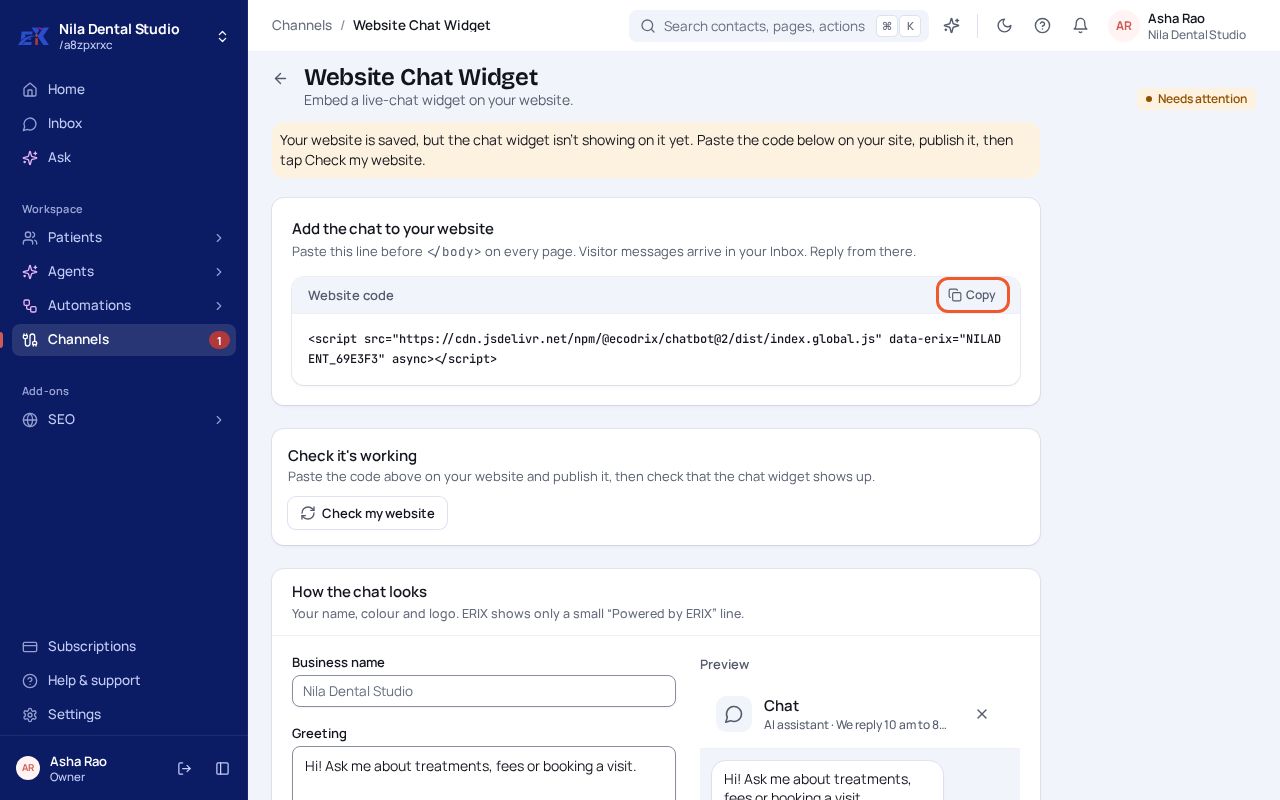
yourclinic.in, and select Connect.Step 2. Copy the Website code and paste it just before
</body>on every page of your site. Publish your site, then select Check my website.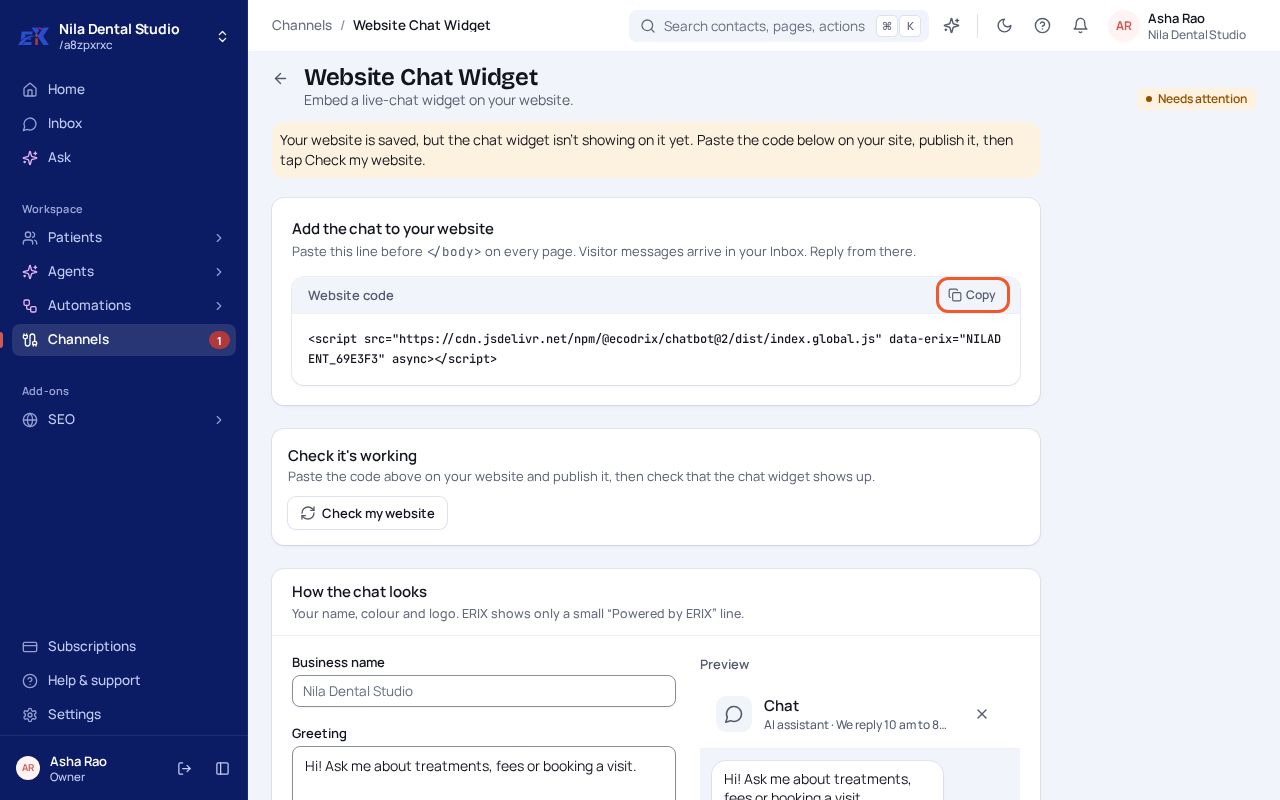 (opens the full-size image)
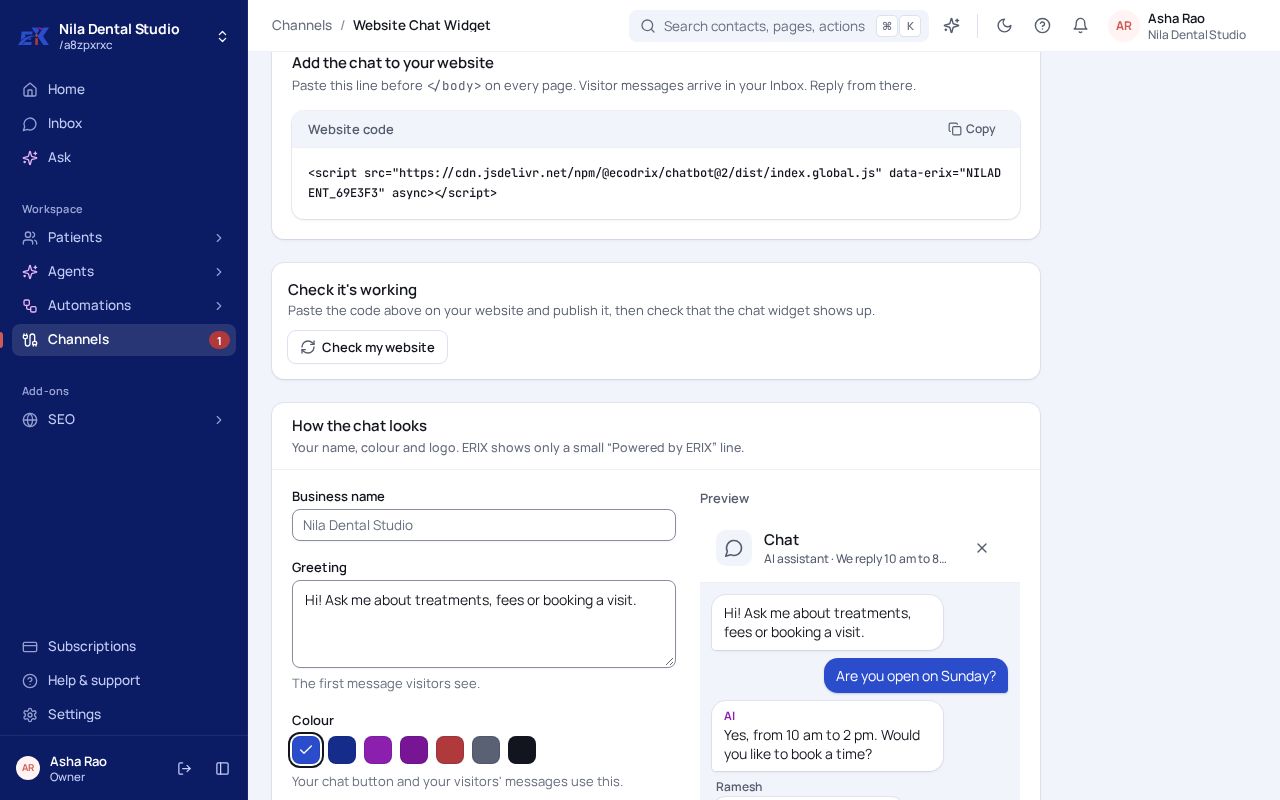
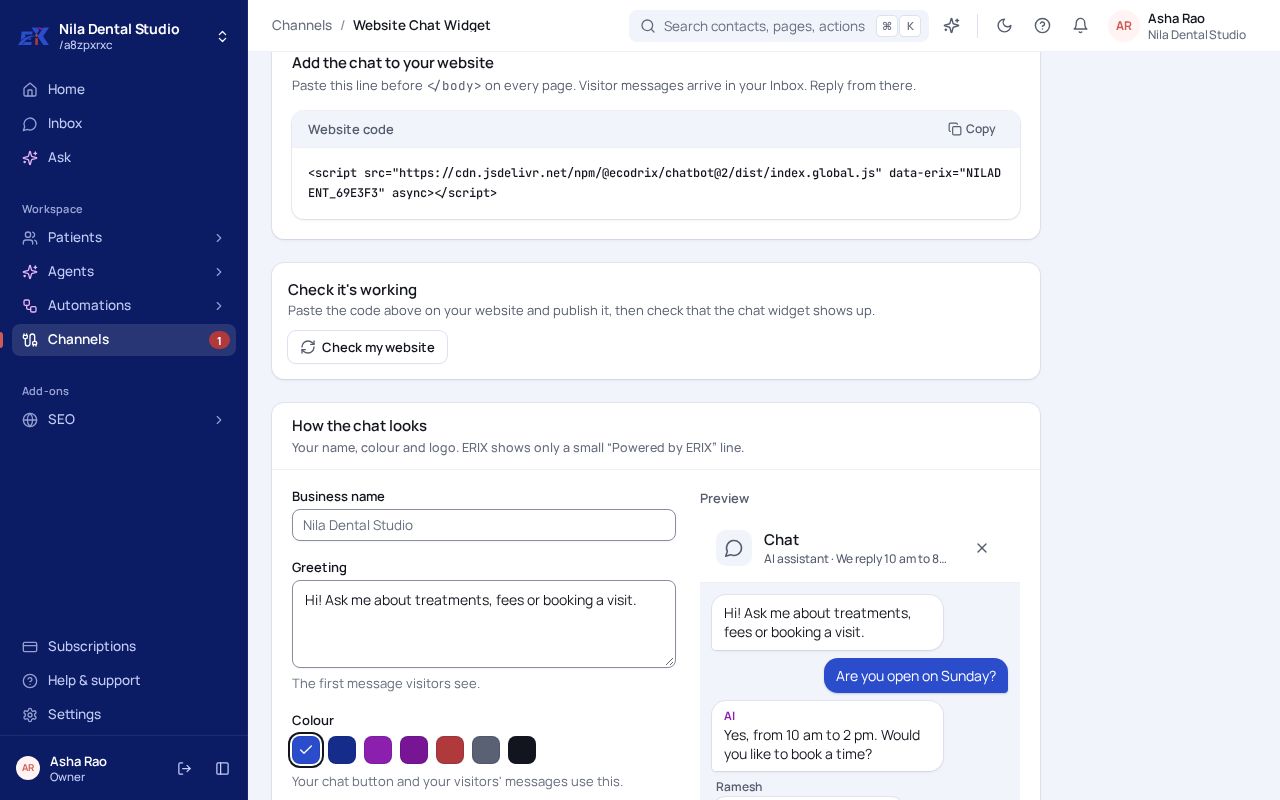
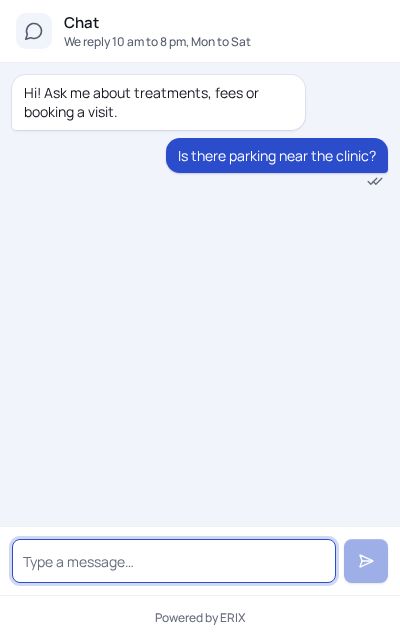
Step 3. Under How the chat looks, set your name, greeting, colour, logo and which corner it sits in. The preview updates as you go. Select Save changes.
 (opens the full-size image)
Step 4. Under How the chat behaves, choose when to ask visitors for their name and number: Before the chat, When needed or Never, and add your business hours.
 (opens the full-size image)
If something isn't right
The chat doesn't show on my site.
Check the code is on the published page (not only in a draft), the domain matches one under Your websites, then select Check my website again.
Was this page helpful?